
The xbMusic component(in-development) is a native Joomla 5 Component for managing a database of music tracks, songs, albums, artists and playlists. It is intended for both personal music library use and as support for an Azuracast radio station.This page provides brief comments on the usage of the various Views.
Contents.
- General -
- Admin - the administrator Views
- Dashboard - a summary of the counts of articles, categories, tags, images, links and shortcodes
- Tracks
- Songs
- Artists
- Albums
- Playlists
- DataManager
- Site - coming Soon : Front-end site views are intended for integration into the radio station website. Although filterings and search of lists is optionally available there are no editing facilities on the front end.
- Track List - a complete list of all published tracks in the database
- Song list - a list of song titles with links to artists, tracks and albums.
- Artist List
- Album List
- Item view - for each of the above lists there are links to the individual item pages for full description and other details
- Schedule view
- Modules - coming later: a set of modules to provide specific information on the station website
- Now playing
- Today's schedule
=======================================================================
This is the xbArticleMan text below to be deleted
========================================================================
Installation & Updating
Install the component in the usual way by downloading the zip file from this site (here) and uploading to the Extensions Install page.
After first installation or updating you should visit the Options page for the article (button on the install complete page, or on the right hand end of the toolbar on any xbMusic admin page, and review and save the options (configuration) settings for the component.
xbMusic uses the Joomla changelog system so the changelog for the installed release is automatically linked from the entry in the Manage-Components list (click on the version number).
If an update is available you should be notified on the Joomla dashboard and details are on the Extensions-Update page. Click on the version number there to see the changelog for the new version. You can also see the full changelogs since the last major release on the xbMusic Dashboard view.
Configuration
There are six groups of glocal options for xbMusic
- General
- ID3 Settings
- Categories
- Tags
- Registration & Credits
- Permissions - the Joonla standard permissions settings for a component.
Unfortunately the native Joomla usage of tags and tools for manipulating them is under-developed with little recognition of either the uses of a tag hierarchy or the power of cross-component tagging.
Tag Grouping - Joomla tags are very flexible and powerful. Tags can be used across multiple components and, although they can not be arranged in explicit categories, they do have a hierarchy (tree) structure so any tag can be set as parent of other tags - this allows the creation of groups of tags for separate purposes. Within xbMusic you can specify up to four separate branches of the tag tree as groups.
In the article edit viiew you will see separate selectors for each defined group, as well as the general tag selector as seen in the normal article edit view.
For example you might be tagging articles with names of places they are about, people who are mentioned, activities they cover, and so on. By arranging your tags so that you have a top level tag for each of these groups and the specific tags as child tags of these group tags it makes selection and filtering and display of tags much simpler. For example (parent tags for groups in bold):
| Places | People | Activities |
|
|
|
This can be very useful both in the admin side when trying to assign tags from a very large list of existing tags, and also on the site views for displaying the tags assigned to an article in an organised manner.
At present xbMusic tag groups are only used for the admin views - but starting from v5.1 there will be new site article views added which will make use of tag grouping to display tags and to filter views by tag. Other xbComponents already make use of tag grouping (eg the xbCulture components which are currently available for Joomla 3 and might one day get a J5 or J6 version)
Cross-component Tagging - since Joomla tags are available across any component they provide a possibility of linking together items from different tags. Again the real power of this is in the frontend views where it is possible to produce a view containing items from diverse components. As a first step the xbMusic Tag:Items admin view is capable of listing not only the articles assigned to a particular tag but also items from other components using the same tag. Version 5.4 is planned to introduce a site-wide Tag view for the front end which will list all items from specified components with a tag.
In the core Joomla Tags are used by seven different types of item - Articles, Article Categories, Banner Categories, Contacts, Contact Categories, Newsfeed Items, Newsfeed Categories. You can select which of these will be displayed in the Tag:Items view in the config options for xbMusic.
Whereas the core Joomla components are always present and clearly defined (albeit with inconsistencies like the name of the title and status fields - Title or Name, State or Published), for third party components there is the potential for endless variation. So you can add additional component items to the list by completing the table in the config options but you will need to know the component name, item name used in view urls, the table name used to store the items, the column name used for the title of the item (may be 2 columns concatenated like firstname and lastname), the frontend view name to see the item, and the backend view name & task to edit the item.
For the Joonla not-core-but-it-should-be component Weblinks the answers are provided as hints in the table form to give an example to follow for other components.
Global Option Settings - from v5.1 onwards new global view option settings for front-end views will be added to xbMusic config options
General Notes
All of the Articles:list views provide the usual sort of filtering and searching options. Search looks in the title and alias. The first filter options allows showing only articles that have, or don't have, the attributes the view is focused on (links, images etc). Filter by status, category use the same mechanisms as the com_content views. Only a single category can be filtered but you can restrict the number of levels below that which are included.
Some of the lists have additional filters covered below.
In the lists some item details are expanded by clicking the summary line with the downward pointing triangle icon. An option at the top of the table determines whether or not an expanded details section will automatically close when a different one is expanded.
Article titles in the list are clickable to open the xbMusic Article:Edit view of the article (see below). Next to the title is an Edit Icon () which will open the com_content full article edit page in a new tab. Next to that is the eyecon () which provides a modal preview of the front-end view of the article without the surrounding banners, modules and footers (&tmpl=component in the link).
In general the eyecon is clicked to get a modal preview of an item like an image or a link destination, and the edit icon to get to an edit view for the item. Generally external (off-site) links will open in a new tab/window if they are not to a modal link.
Azuracast Integration
xbMusic is designed to be able to collect radio station, playlist, and schedule information from Azuracast installations through the Azuracast API. This option can be enabled in the config options by entering an api key, the ural for the azuracast installation and a name for the api user-key combination.
Radio Satations: Once the option is enabled an additional Azuracast tab in the DataManager screen will display any available radio stations from the api, with an option to load and not already saved into the database in table #__xbmusic_azstations.
Mutiple Azuracast Instances: The API authorisation details are saved with the station(s), so by loading different API Key and URL in the Config options a different Azuracast server can also be accessed and its stations saved.
Radio stations can not be edited or saved back to the Azuracast server from xbMusic - it is assumed the station configuration will be completely managed from Azuracast.
Playlists: For Azuracast a playlist belongs to a station and cannot be shared between stations. Within xbMusic playlist can be created independently from Azuracast station. Playlists for an Azuracast station can be listed and added to the xbMusic database as new playlists, or linked to an existing playlist in which case the relevant details already in the database will be overwritten by Azuracast data.
However the Azuracast API does not currently provide an easy way to get a list of tracks and play order for a playlist. This has to be done by exporting the playlist as a PLS file and then importing it into xbMusic on the Playlist edit page. Naturally this relies on the track paths and filenames in the xbmusic folder matching the structure in the station media older in Azuracast. See the sharing tracks section below.
Schedules: In Azuracast schedule items belong to a playlist and are provided by the API with the playlist data. When an xbMusic playlist is linked to an Azuracast station and playlist the scedule items will be imported and stored in a separate #__xbmusic_schedule table. This enables schedule views to be displayed across stations as well as more flexible layout options than the built-in Azuracast schedule display (eg day, week, month and list views with items optionally being displayed or hidden.
Sharing Tracks/Media: Ideally you want to have both xbMusic and Azuracast sharing the exact same music files so that changes and additions get automatically included in both. If the xbMusic website and the Azuracast instance are both on the same server then it is possible to move the Azuracast media storage outside of its Docker container and into the general file space on the server. usually this will be in the Azuracast installation & configuration folder, typically /var/azuracast By ensuring that permissions in that folder allow the xbMusic webserver read-write access it is then easy to make a symlink to the station media/ folder from the xbMusic /xbmusic/ folder - a tool for managing symlinks in the /xbmusic/ folder is provided on the DataManager Files tab
Alternative sharing scenarios for situations where the Azuracast instance is on a remote server may also be contrived by use of the remote storage options in Azuracast and finding a way to link those to a sync'd folder on the xbMusic server. In the worst case it becomes a question of manually maintaining a copy of the files on both servers by using SFTP or similar tools.
Whatever solution is developed it will be necessary to maintain the same folder structure within the Azuracast station media/ folder and the xbMusic /xbmusic/subpath/
Dashboard
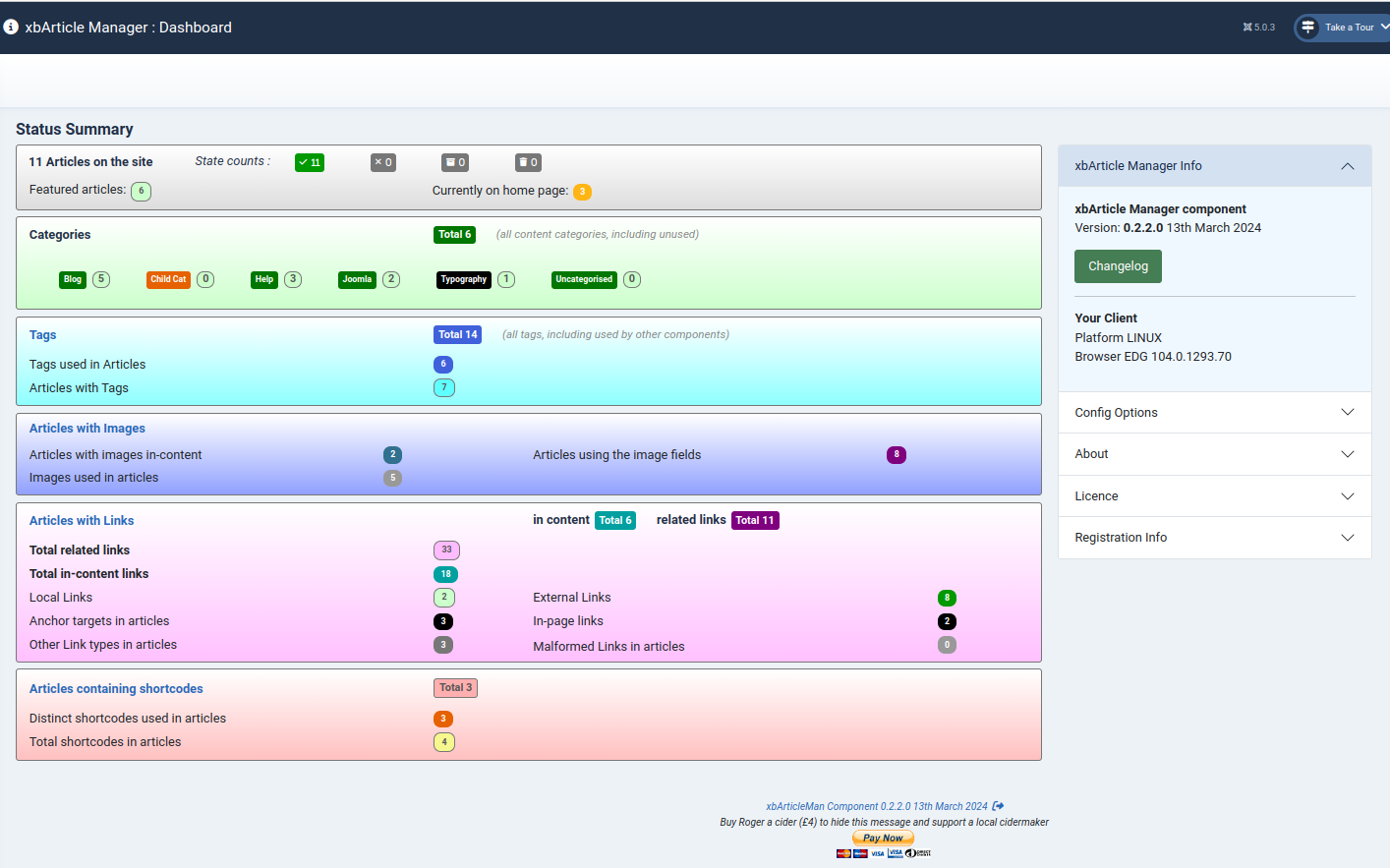
The Dashboard view provides a summary of the state of xbMusic items and information about the configuration and system.
The main area shows boxes with counts of:
- Tracks
- Songs
- Artists
- Albums
- Playlists
- Categories
- Tags
The information area on the right gives details of the installed version and client being used, access to the full changelog including the next version if an upgrade is available, key config option settings, licence and registration, and some text about the component.
Albums
Artists
Playlists
Songs
Tracks
DataMan
- Import
- Report
- Export
- Delete
- Azuracast
- Files
Frontend Site Views
These are not available yet, but are planned for releases dreckly...
(don't hold your breath - "dreckly" is a Cornish dialect word meaning much the same as the Spanish "mañana" but without the dreadful sense of urgency conveyed by mañana)
